 Signin








Parameters
Parameters are dynamic input values that allow users to control and customize visualizations without modifying the underlying data. They act like variables that influence calculations and chart filters.
What Are Parameters
Parameters work as user-controlled values that can be changed at any time. They help update calculated fields, filter results or handle what-if analysis without editing the dataset.
Why Parameters Are Useful
- Enable dynamic calculated fields.
- Allow flexible, user-driven filtering.
- Support what-if analysis.
Best Practices
- Use clear and meaningful parameter names.
- Set appropriate default values.
- Prefer user-friendly inputs like dropdowns, sliders, or radio buttons.
- Restrict ranges to prevent invalid inputs.
- Document the purpose of each parameter.
Configuring a Parameter
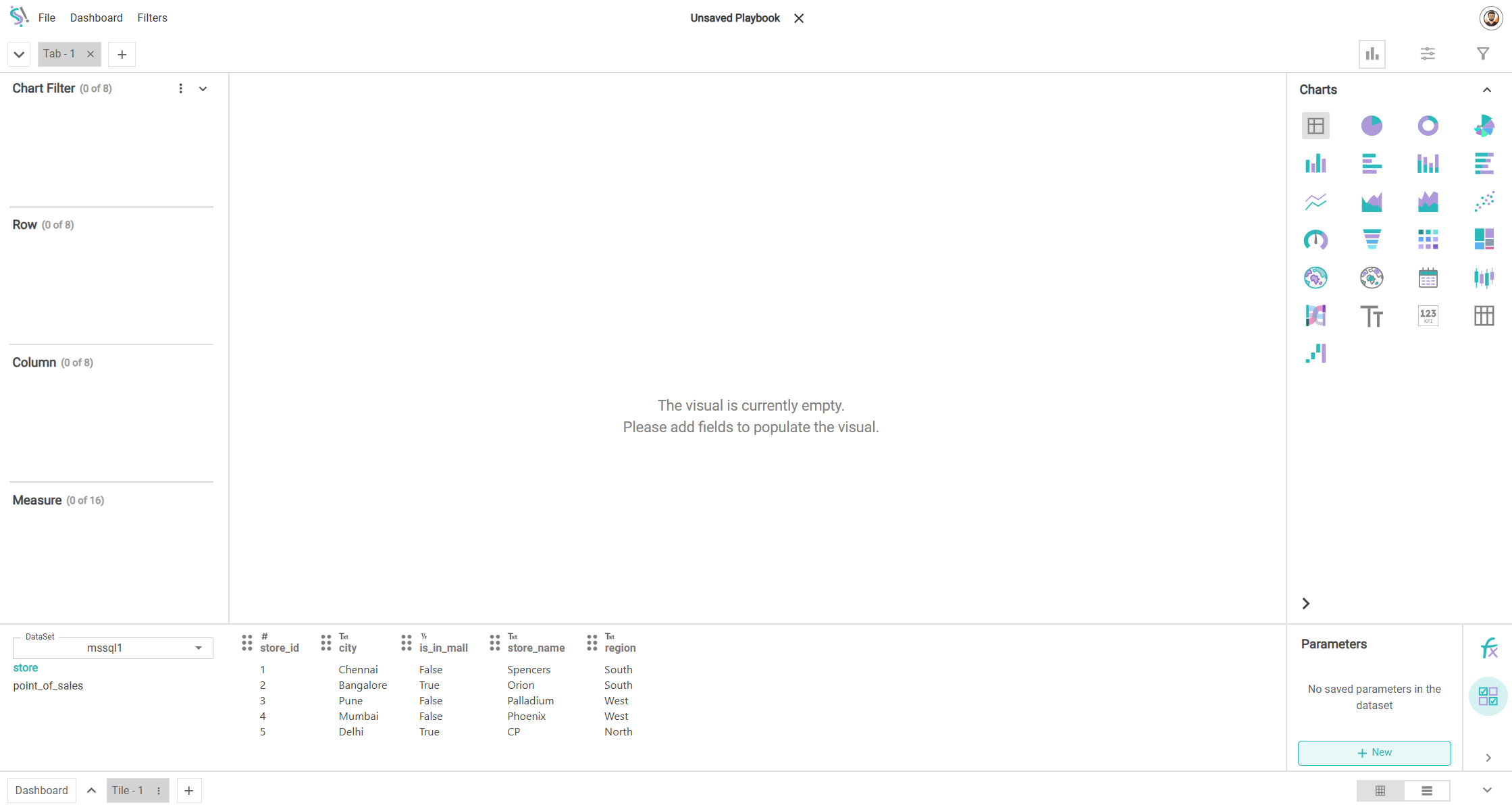
To create a parameter, open the playbook and select the dataset from the workspace. At the bottom-right of the Formula Builder, click the parameter icon to open the Parameter tab. Then click the New button to create a parameter. This will open the parameter configuration page.
Datatype
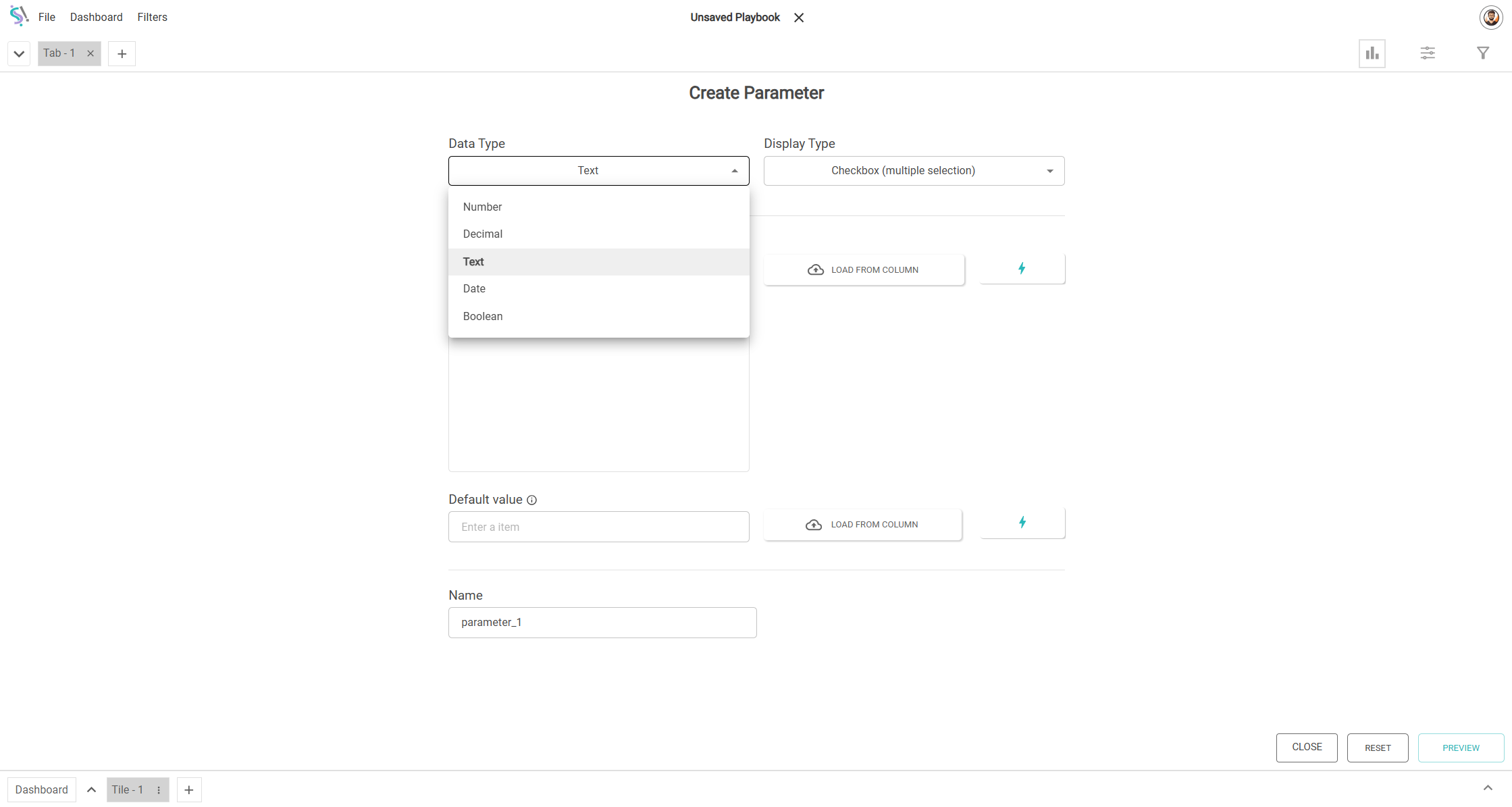
Choose the datatype for your parameter. Supported datatypes include:
- Number
- Decimal
- Text
- Date
- Boolean
Creating a New Parameter
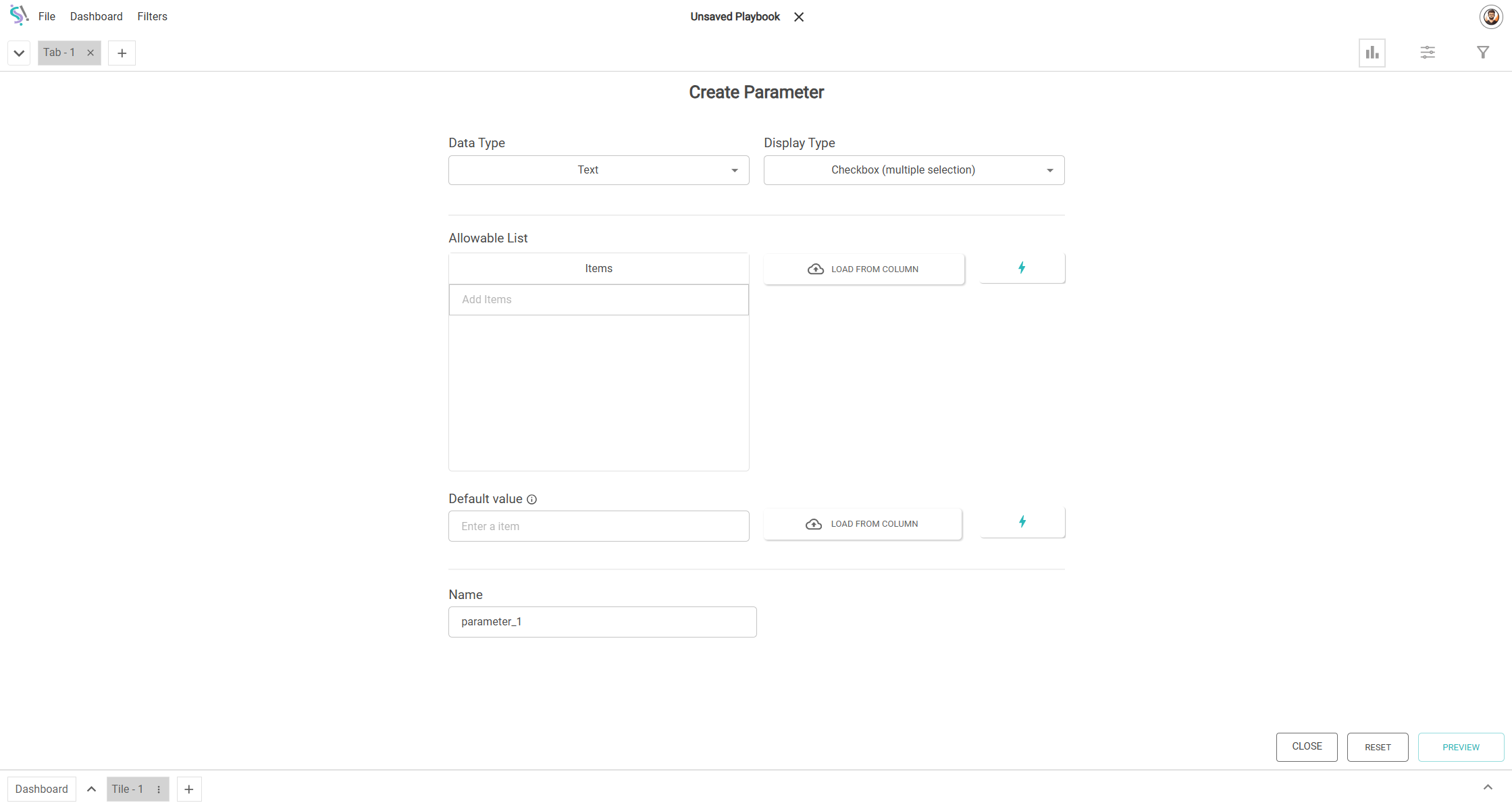
When you click New in the Parameter tab, a Create Parameter window appears. This window includes all the configurable fields such as Data Type, Display Type, and additional fields that change dynamically based on your selections.
By default, the Data Type is set to Text and the Display Type is Checkbox (Multiple Selection). For this combination, the following fields are available:
Allowable List
The allowable list defines which values the user can select from. Next to this field, there is aLoad From Column button and a Refresh icon. Clicking Load From Column opens a right-side panel where you can drag and drop any column of Text datatype.
Once a column is loaded:
- All unique values from that column appear in the allowable list.
- The total number of items is shown.
- You can remove any item you do not want to include.
Default Value
Below the allowable list, you can set a Default Value. The default value:
- Must be selected from the allowable list items.
- Can be set manually or via the Load From Column button.
- The refresh icon is also available here to reload values when the playbook opens.
- You can set the default value only after loading the allowable list.
Name
At the bottom, there is a Name field where you can enter a unique name for the parameter. This name will appear throughout the playbook wherever the parameter is used.
Action Buttons
The Create Parameter window has three action buttons:
- Close – Exits the window without saving the parameter.
- Reset – Clears all the fields and restores default values.
- Preview – Opens a preview popup showing how the parameter will appear based on the selected display type.
Preview Popup
In the preview popup, you will see the default value applied using the selected display type. Since the display type is Checkbox (Multiple Selection), the values appear as checkboxes.
In the preview, you can:
- Select or deselect multiple values.
- Click Back to return and make changes.
- Click Save to save the parameter.
After Saving
Once the parameter is saved, you are returned to the playbook screen. The saved parameter appears on the right-side panel under the Parameters section.
Each saved parameter has a dropdown containing the following options:
- Show – View the details of the parameter.
- Edit – Modify the configuration of the parameter.
- Delete – Delete the parameter if it is no longer needed.