 Signin







Sign-In and Sign-Up Process Overview
The Silzila platform provides secure and easy access for different types of users — Business, Enterprise, and Personal (Community). Users can sign in or register through dedicated sections, each with its own form and verification process.
You can access the login page by visiting silzila.com and clicking the Login option available on the top-right corner of the navigation bar.
Enterprise
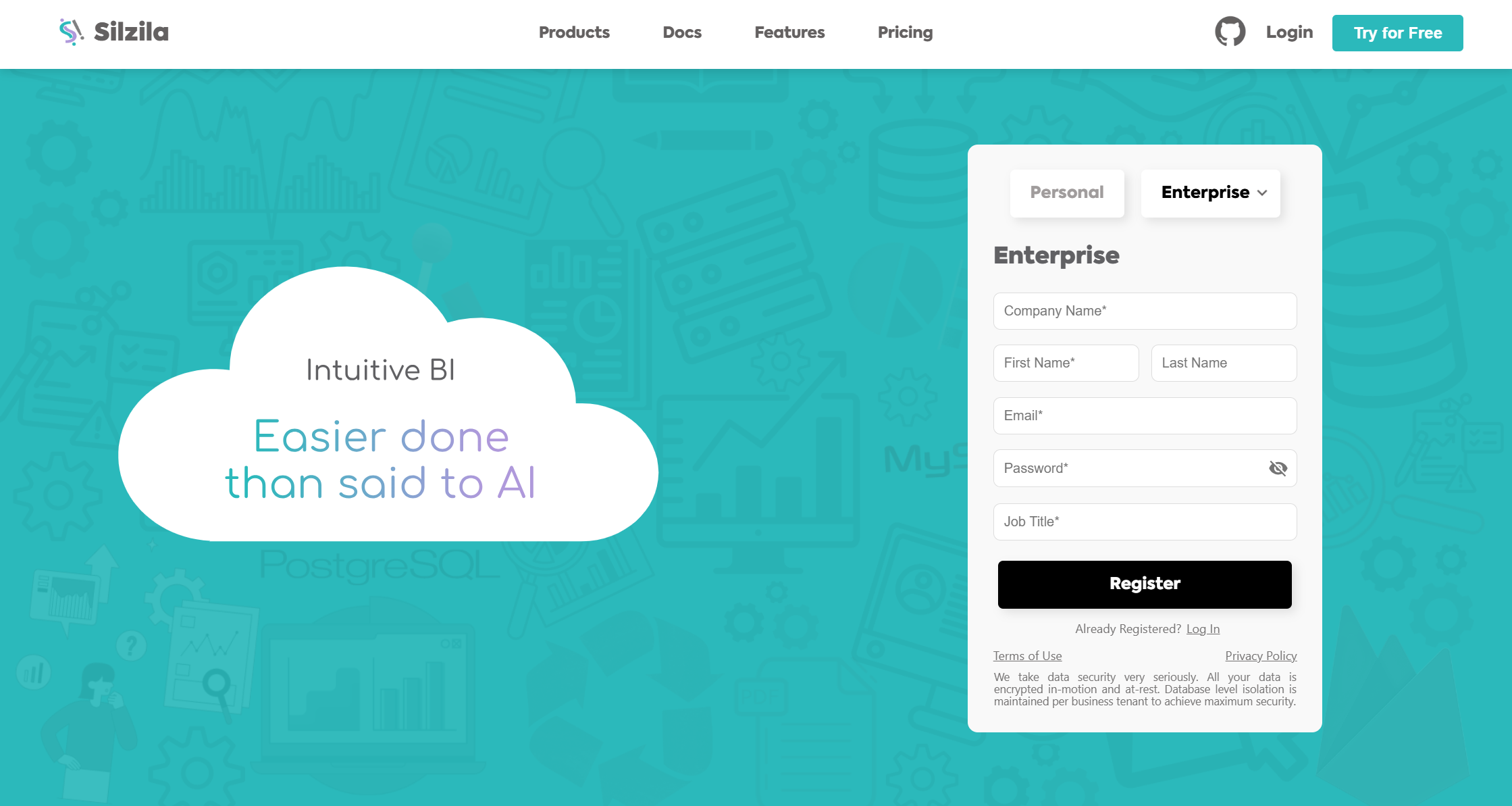
New User Registration
- On the Enterprise login page, click New User? Register here below the login box.
- You’ll be redirected to the Enterprise Registration page.
- Fill in:
- Company Name
- First Name
- Last Name
- Password
- Job Title
- You can view your password using the eye icon.
- Click Register after entering all details.
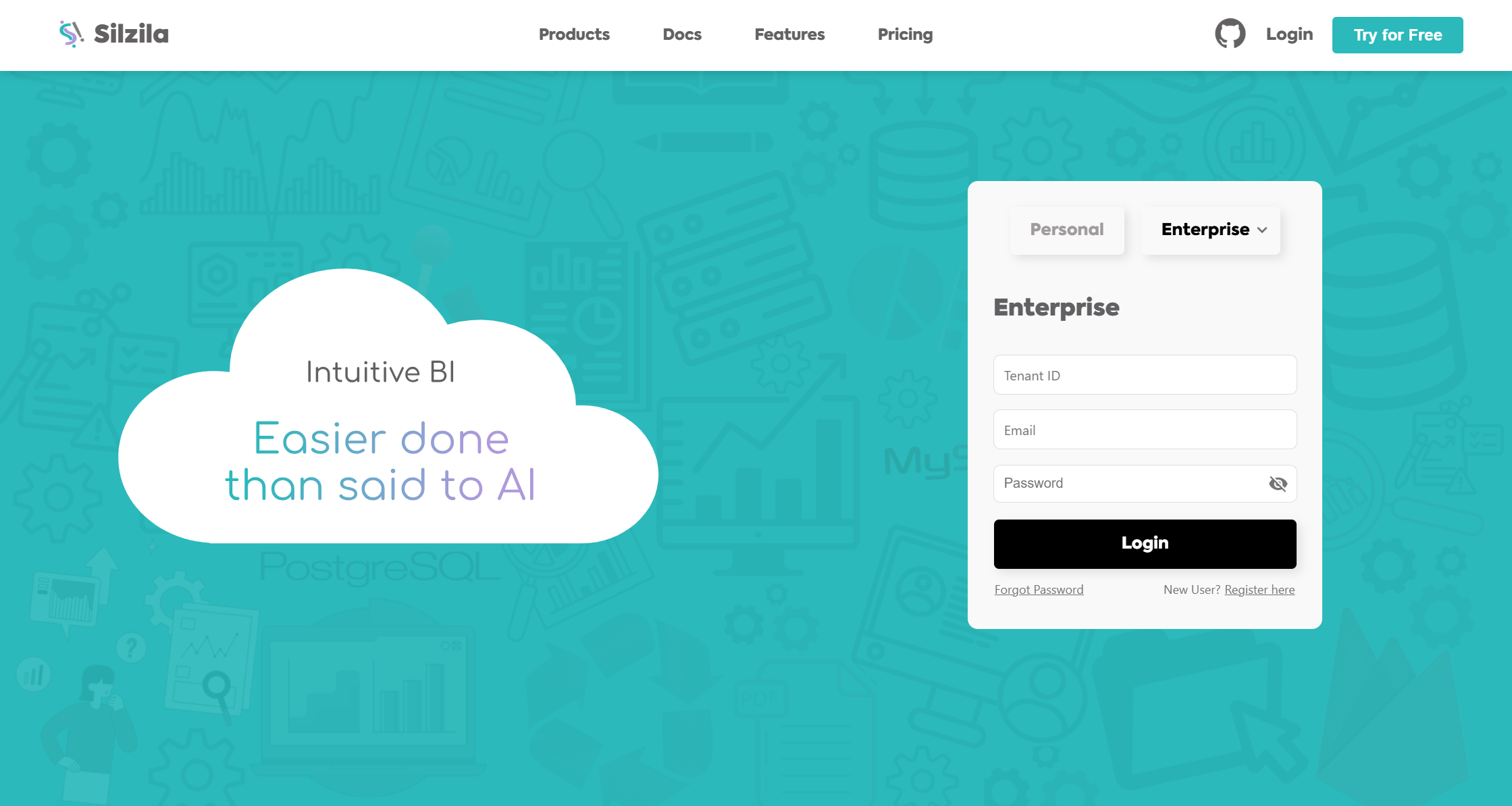
Login
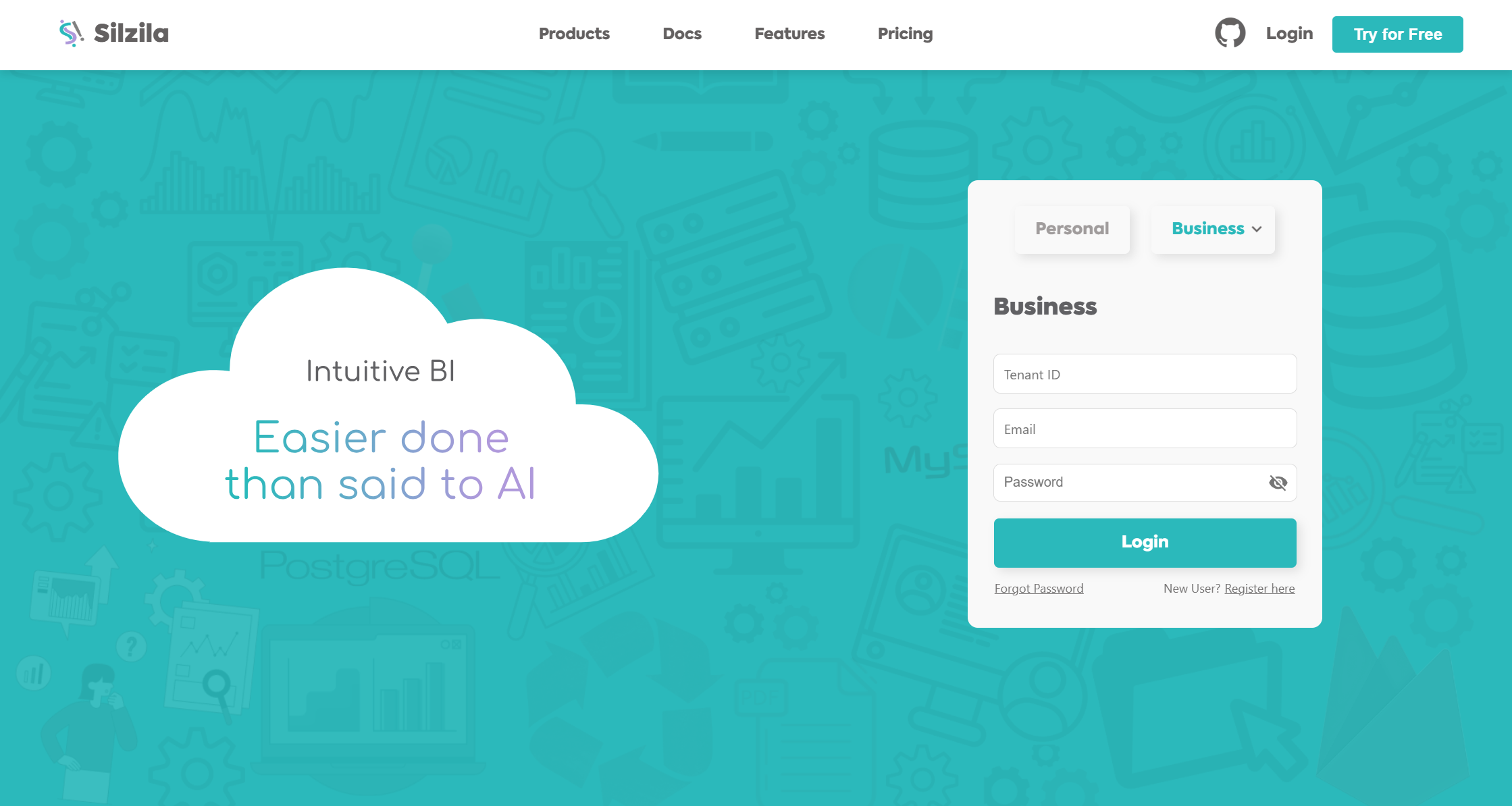
- Hover over the Business tab on the login page.
- A dropdown will appear — select Enterprise.
- You’ll be redirected to the Enterprise Sign-In page.
- Enter your Tenant ID, Email, and Password, then click Login.
You’ll receive an email verification link at the provided email. Click the verification URL or button to confirm your account.
Once verified, return to the site and log in with your enterprise credentials. You can switch the view to Enterprise or Personal versions using the tabs available above the login box.
Business
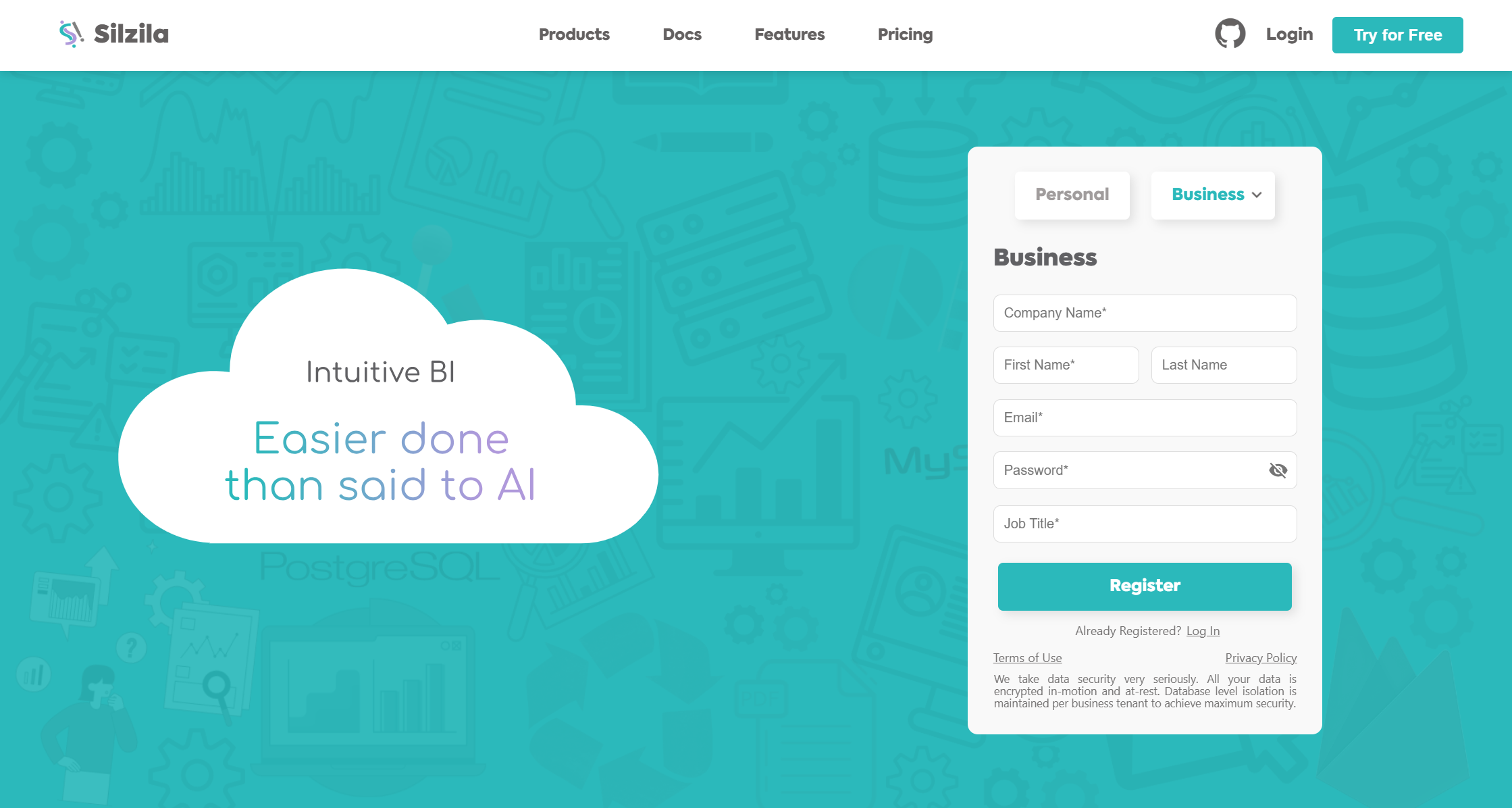
New User Registration
- On the login page, click the New User? Register here link located below the login box.
- You’ll be redirected to the Business New User Registration page.
- Provide the following details:
- Company Name
- First Name
- Last Name
- Password
- Job Title
- You can toggle password visibility by clicking the eye icon beside the password field.
- After filling in all fields, click the Register button.
Login
- Click Login on the navbar.
- You will be redirected to the Business Sign-In page by default.
- Enter the following details:
- Tenant ID
- Password
- Click Login to access your business account.
A verification email will be sent to the email address you provided. The email includes both a verification button and a URL.
Click either one to verify your account. Once verified, return to the website and log in using your credentials.
Personal (Community)
New User Registration
- Click New User? Register here on the Personal login page.
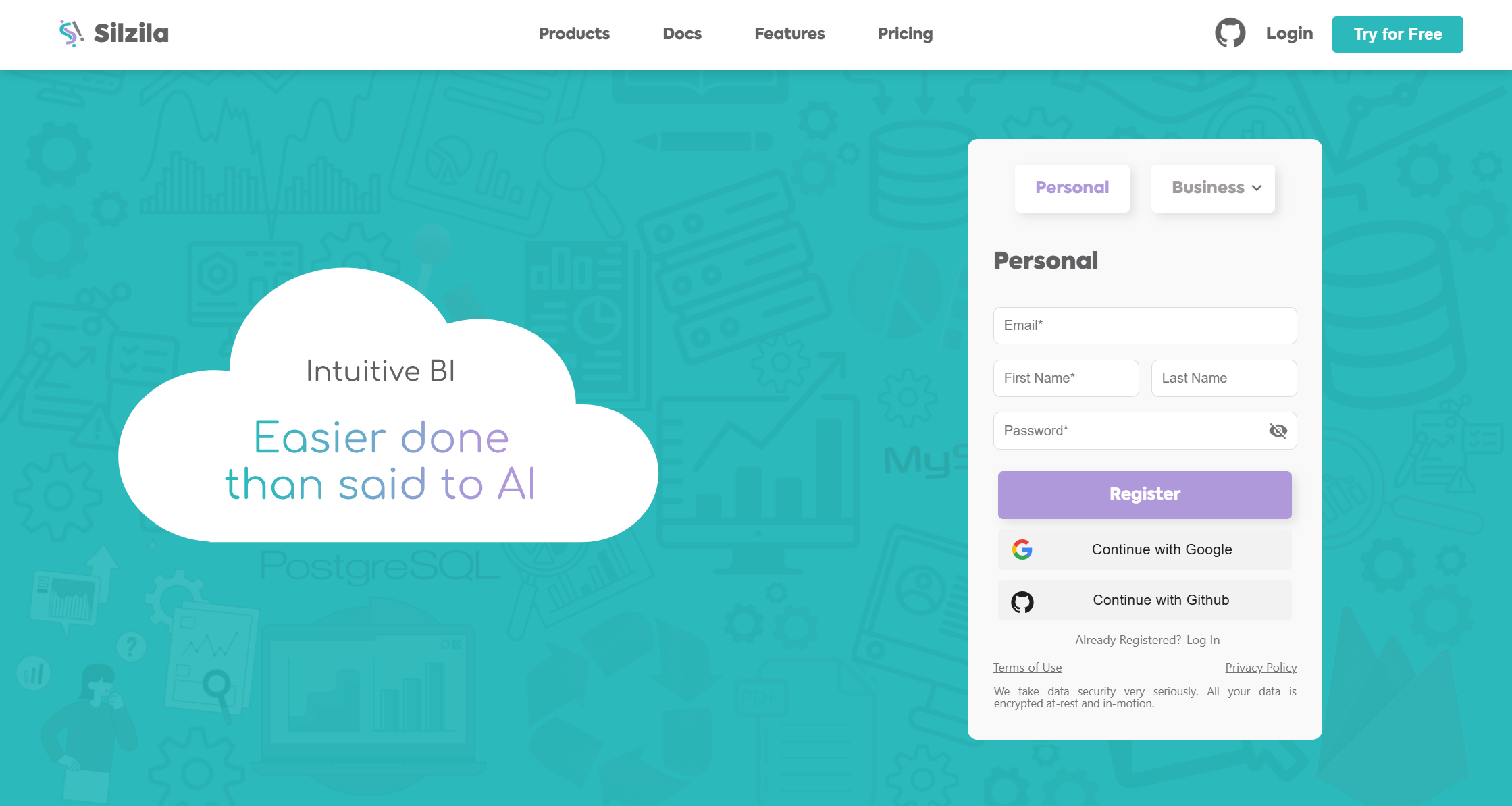
- You’ll be redirected to the Personal Registration page.
- Fill in:
- First Name
- Last Name
- Password
- Click the eye icon to toggle password visibility.
- Click Register to complete your registration.
Login
- Click the Personal tab on the login page.
- You’ll be redirected to the Personal/Community Sign-In page.
- Here, you can:
- Login using Email and Password, or
- Continue with Google, or
- Continue with GitHub.
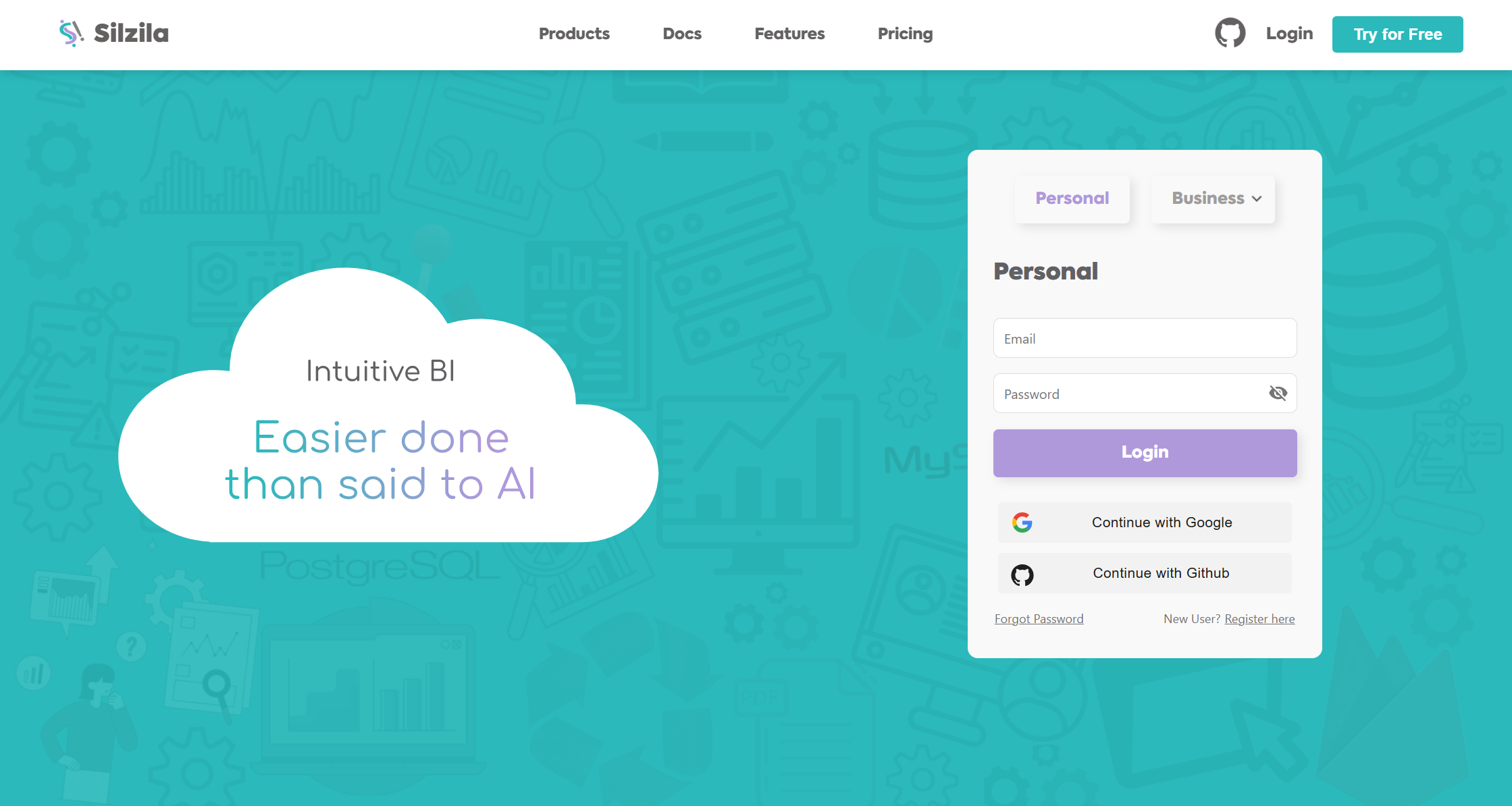
If you choose Google or GitHub, you’ll be redirected to the respective OAuth login page. Follow the on-screen instructions to complete authentication.
A verification email will be sent to your inbox. Click the verification button or URL in that email to confirm your account. Then return to the website and log in using your credentials.
Email Verification Details
- The verification link or button sent to your email is valid only for a limited time.
- The validity period may differ for each version (Business, Enterprise, or Personal).
- You can find the expiry time mentioned in the verification email.
Forgot Password
If you forget your password, you can reset it easily:
- On any login page (Business, Enterprise, or Personal), click Forgot Password? below the login box.
- Enter your registered email and click Submit.
- If your email is valid, you’ll receive an email with password reset instructions.
- Follow the instructions in the email to reset your password.
- After resetting, return to the website and log in with your new password.
Additional Notes
- All versions (Business, Enterprise, and Personal) have consistent password visibility and reset options.
- Verification emails contain both a button and a direct URL for your convenience.
- Ensure that you verify your account before attempting to log in.
| Feature / Version | Business | Enterprise | Personal / Community |
|---|---|---|---|
| Access | Visit silzila.com → Click Login (top-right navbar). The Business tab opens by default. | Hover over the Business tab and select Enterprise from the dropdown. | Click the Personal tab to switch to the Personal / Community login version. |
| Login Fields | Tenant ID, Email, Password | Tenant ID, Email, Password | Email & Password or Continue with Google or GitHub |
| Login Steps | Enter credentials. Click Login to access your Business account. | Select Enterprise tab. Enter credentials. Click Login. | Enter Email and Password, or choose: Continue with Google → Redirects to Google OAuth. Continue with GitHub → Redirects to GitHub login. Follow on-screen instructions to complete login. |
| New User / Registration | Click New User? Register here below login box. Fill in: Company Name, First Name, Last Name, Email, Password, Job Title. Use the eye icon to view password. Click Register. Verify your email via the verification link or button. Return to the website and log in. | Click New User? Register here below login box. Fill in: Company Name, First Name, Last Name, Email, Password, Job Title. Use eye icon for password visibility. Click Register. Open verification email and click the URL or button. Log in after verification. | Click New User? Register here below login box. Fill in: First Name, Last Name, Email, Password. Use the eye icon to view password. Click Register. Verify email via link or button in your inbox. Return to the site and log in. |
| Email Verification | A verification email is sent with both a button and a URL. Click either to verify your account. Verification link valid for limited time. | Same as Business version – includes button and URL. Valid for a few minutes. | Same as other versions – verify using link or button. Link valid only for a short duration. |
| Forgot Password | Click Forgot Password? below login box. Enter registered email → Submit. Follow reset link in your email. Set a new password and log in again. | Click Forgot Password? below login box. Enter email → Submit. Check email for reset link. Follow instructions to set new password. | Click Forgot Password? below login box. Enter email → Submit. Receive reset email and follow link. |
| Password Visibility | Click the eye icon beside the password field to toggle visibility. | Click the eye icon beside the password field to toggle visibility. | Click the eye icon beside the password field to toggle visibility. |
| Verification Validity Note | The verification link expires after a few minutes (duration varies per version). | Same as Business. | Same as Business and Enterprise. |
| Login Navigation Summary | Default tab when opening the login page used for company or organization users. | Accessible via dropdown under the Business tab. | Accessible through the Personal / Community tab, with Google & GitHub login options. |